

Codex computer use on Intel Macs is available through our open-source Computer Use (Intel) plugin. Panomity has published version 1.3.0 of the open-source Computer Use (Intel) Codex plugin, a local MCP plugin for Intel (x86_64) Macs. It gives Codex a measured way to see the desktop, send one action, and check what happened. The release is available from the v1.3.0 GitHub release (commit ce5d4618552dbae7b80ee62dd2c29b54172a0af5) under the MIT license.
This is a focused bridge for people who already use Codex Desktop on an unlocked Intel Mac and need reliable macOS automation. It is a local tool server, not a new model and not a replacement for OpenAI’s separate native Computer Use service. Availability of the official integration still depends on the Codex app build. The plugin exists because Intel support had a compatibility gap, and it keeps the familiar MCP workflow while adding better evidence around every desktop action.
What version 1.3.0 changes
The release keeps the existing tool set and adds two workflow tools to the plugin’s 54 MCP tools:
get_desktop_statereturns an image, the frontmost app identity, and a compact visible Accessibility tree in one observation.act_and_observesends one action, optionally checks an explicit Accessibility postcondition, and then returns a fresh image and UI state.
That sequence is the core idea: see, act, verify. A screenshot now reports its actual pixel dimensions, captured screen-point rectangle, conversion factors, and a short-lived screenshot_id. The mapping is calculated from the PNG and CoreGraphics bounds, so Retina scaling, downscaling, and a cropped region remain explicit. This lets a 400-pixel image target the correct screen point.
Image references are deliberately bounded. They expire after 120 seconds and are invalidated by input sent through the same server. The server also rejects a reference when the frontmost app or display layout changed. Calls are serialized within one server process, which prevents overlapping actions from that process from racing each other; separate server processes are not a global lock. These checks reduce coordinate ambiguity; they do not freeze the Mac. A person, notification, timer, or another application can still change the page, so a changed interface needs a new observation.
How the see-act-verify loop feels in practice
Imagine a support task that must open a desktop app, select a menu item, and confirm a setting. Codex first calls get_desktop_state. The selected model receives the screenshot plus compact Accessibility context and can identify the frontmost app. It then calls act_and_observe with one click or a field edit and an expected result such as “the confirmation dialog is present” or an exact field value.
The response separates useful outcomes: matched, already_satisfied, observed, timed_out, and error. If a state is already correct, the plugin can skip the input. If observation fails, it does not blindly replay the action. That distinction matters for macOS automation: a timeout may mean the app is slow, while an error can indicate an invalid reference or a failed observation. The next step should be a deliberate fresh observation, not an automatic second click.
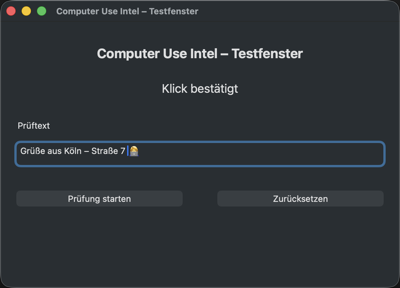
For ordinary clicks and literal Unicode typing, the native HID helper sends Core Graphics events and preserves the clipboard. The live fixture verified the string “Grüße aus Köln – Straße 7 👩💻” and then read the resulting field value independently. Accessibility and Vision OCR positions are already screen points; image pixels use the returned transform. This makes the contract understandable when a display is scaled or a small crop is used to inspect fine text.
Install the Intel MCP plugin
You need Codex Desktop on an Intel Mac, an x86_64 Node.js installation on your PATH, and cliclick. The repository lists brew install node and brew install cliclick for these dependencies. Native x86_64 helpers are included, so a full Xcode installation is optional unless you want to rebuild them yourself.
Download the exact archive named codex-computer-use-intel-v1.3.0.zip from the release download. The checkout path matters for updates, so keep it somewhere stable rather than unzipping a new copy for every version.
unzip codex-computer-use-intel-v1.3.0.zip
cd codex-computer-use-intel
./install.sh
The installer installs the Node dependencies, builds the TypeScript MCP server, and builds the native Swift helpers when Xcode is available. Without full Xcode it uses the bundled Intel binaries and clears their quarantine flag. It then generates marketplace/plugins/computer-use-intel/.mcp.json with absolute paths and prints the Codex configuration snippet. The default command does not silently edit your Codex configuration.
For a first registration, the installer can append the marketplace and plugin entries with:
./install.sh --write-configThat option can change ~/.codex/config.toml. The generated block registers the local marketplace, disables computer-use@openai-bundled, and enables computer-use-intel@codexintel-local. It does not include the required feature switches: separately ensure that apps = true and plugins = true are set in the existing [features] section.
If the local marketplace is already registered, --write-config leaves the configuration unchanged, including missing or disabled plugin entries. Compare your existing settings with the documented configuration in that case. If you did not use the option, apply the printed entries manually with your actual checkout path. Merge existing TOML sections rather than duplicating them.
Grant permissions and restart
In System Settings → Privacy & Security, grant the Codex app Accessibility permission for input injection and Accessibility tools, and Screen Recording permission for screenshots and OCR. Fully quit Codex with ⌘+Q, then relaunch it. Confirm that Settings → Plugins lists “Computer Use (Intel)” and that the composer accepts @computer-use-intel.
A simple first check is: “Take a screenshot and tell me which app is in front.” It exercises the server without asking it to change a document. For repeatable regression coverage, the project also provides cd computer-use-intel && npm ci && npm test. The v1.3 release passed 20 automated tests and three final live-fixture runs, including the installed copy; those are project checks, not a guarantee that every app behaves the same way. The fixture covered a resized, cropped-button click, stale-reference rejection, an already-satisfied skip, Unicode entry, a deliberate timeout, and an independent Accessibility read.

Useful, bounded examples
Read a status panel
Ask Codex to observe the frontmost app, read the visible Accessibility fields, and report a status. This is a read-only task and a good fit for the new combined state tool. If the panel contains sensitive text, remember that screenshots and UI text can enter the selected Codex model’s context.
Fill one known field
For a form you own, ask Codex to find the field by its Accessibility label, enter one literal value, and verify the exact resulting value. The postcondition makes success about delivered text rather than event submission. Clipboard content remains available to the user after the operation.
Click a control from a crop
When a full display is too large, request a small region, identify the target in the returned image, and use its current screenshot reference. The transform maps image pixels to screen points. If the page moved, the app changed, the display layout changed, or the 120-second window elapsed, obtain another state before clicking.
For workflows that can be completed through an API or command-line interface, use that path first. A desktop click is most useful when the application has no suitable API, when a human-visible confirmation is required, or when a short, limited interaction is easier to audit than a long script. The plugin does not claim that a custom MCP tool can guarantee every action in every application.
Example: checking a field in a native app
Consider a developer maintaining a legacy Intel Mac used for release support. They need to open a native editor, inspect a warning, and update one labeled value before handing the machine back. Earlier coordinate-only automation could click the wrong place after a window moved. With v1.3, Codex observes the frontmost app and a compact Accessibility tree, uses a crop when the warning text is small, performs one typed edit, and asks for the exact field value as the postcondition. If the warning has already been cleared, already_satisfied avoids an unnecessary input. The record of the fresh state is more useful than a claim that the action “probably worked.”
Compatibility, privacy, and scope
The plugin targets macOS 12 or newer on Intel (x86_64) hardware and ships native Intel helpers. The v1.3 release was runtime-tested on macOS 26.5 on one Intel Mac with one monitor. That validates the reported fixture and installed copy; it is not a certification of macOS 12 runtime behavior or multi-monitor layouts. Apple Silicon users should use the official Computer Use plugin where it is available.
“Local” describes where the MCP server and helper processes run. It does not mean the AI model runs locally, offline, or self-hosted. Screenshots, OCR results, and UI text may be sent into the selected Codex model context, subject to that model and account’s handling. Review the data visible on screen, limit tasks to the window and account you intend to control, and avoid treating the plugin as a privacy guarantee.
The project is model-independent. There are no hard-wired GPT-5 settings, no model or reasoning-effort changes, and no extra model API integration. GPT-6 Astra can make better use of the richer tool context, but the MCP server can be called by other supported models too. OpenAI’s Computer Use guide recommends code execution for Astra while allowing existing function or MCP UI tools to remain in an orchestration; that is a short integration principle, not an endorsement of this community plugin.
| Path | Good fit | Key boundary |
|---|---|---|
| API or CLI | Deterministic data and repeatable jobs | Requires an application interface |
| Computer Use (Intel) MCP | Short, visible tasks on an Intel Mac | Needs an unlocked Mac and fresh observations |
| Official Computer Use integration | Builds that expose OpenAI’s native service | Availability is app-build dependent |
FAQ
Is this an official OpenAI plugin?
No. Computer Use (Intel) is an open-source, MIT-licensed community plugin from Panomity. It is independent of OpenAI’s native Computer Use service and does not make a universal statement about Intel support in official Codex builds.
Does it work on Apple Silicon or at the lock screen?
It is built for Intel/x86_64 Macs. On Apple Silicon, use the official plugin when your Codex build provides it. The local bridge requires an unlocked desktop because macOS blocks capture and event injection at the lock screen.
Will a failed observation retry the click?
No. v1.3 reports an error or timeout and leaves the next decision to Codex. Take a fresh observation, check the app and display state, and decide whether a new action is safe.
Can I use it with GPT-6 Astra?
Yes, where your Codex account and app expose that model. Astra can use the image, frontmost-app identity, and Accessibility context, while the server remains model-independent and does not alter model settings.
How do I update an existing install?
Pull or replace the checkout at the path already referenced by your local marketplace, then run ./install.sh there. A second checkout does not update the installed copy. Start a new Codex task after refresh; restart Codex if an existing MCP process still holds the previous code.
For the complete tool reference, implementation notes, and uninstall steps, read the project’s README and the v1.3.0 changelog. The release is intentionally small in scope: it gives an Intel Mac a clearer observation contract so Codex can act carefully, verify the result, and stop when the evidence is not fresh.
Explore more of our projects in Panomity Software News.
0 Comments